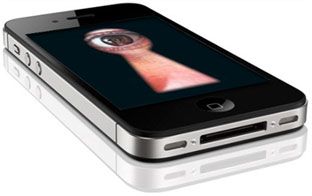
But Apple didn’t shout quite so loud about an enhancement to its new mobile operating system, iOS 6, which also occurred in September: The company has started tracking users so that advertisers can target them again, through a new tracking technology called IFA or IDFA.
Previously, Apple had all but disabled tracking of iPhone users by advertisers when it stopped app developers from utilizing Apple mobile device data via UDID, the unique, permanent, non-deletable serial number that previously identified every Apple device.
For the last few months, iPhone users have enjoyed an unusual environment in which advertisers have been largely unable to track and target them in any meaningful way.
In iOS 6, however, tracking is most definitely back on, and it’s more effective than ever, multiple mobile advertising executives familiar with IFA tell us. (Note that Apple doesn’t mention IFA in its iOS 6 launch page).
Users can switch off that targeting, but it’s tricky, as we discovered a couple of days ago. Although at least iOS 6 users are able to turn off tracking, which they weren’t before.
Here’s how it works.
IFA or IDFA stands for “identifier for advertisers.” It’s a random, anonymous number that is assigned to a user and their device. It is temporary and can be blocked, like a cookie.
When you look at an app, or browse the web, your presence generates a call for an ad. The publisher’s site that you’re looking at then passes the IFA to the ad server. The advertiser is then able to know that a specific iPhone user is looking at a specific publication and can serve an ad targeting that user. IFA becomes particularly useful, for instance, if an ad server notices that a particular IFA is looking at a lot of different car sites. Perhaps that user is interested in buying a new car. They’ll likely start seeing a lot of car ads on their iPhone.
More importantly, IFA will allow advertisers to track the user all the way to “conversion” — which for most advertisers consists of an app download. Previously, advertisers had no idea whether their ads actually drove people to download apps or buy things. Now IFA will tell them.
The IFA does not identify you personally — it merely provides a bunch of aggregate audience data that advertisers can target with ads.
iPhone Screengrab
Tracking is on by default
The new iPhone operating system comes with three things that make tracking easier for advertisers and reduce the likelihood that you’ll opt out.
iOS 6 comes in a default “tracking on” position. You have to affirmatively switch it off if you do not want advertisers to see what you’re up to.
The tracking control in iPhone’s settings is NOT contained where you might expect it, under the “Privacy” menu. Instead, it’s found under “General,” then “About,” and then the “Advertising” section of the Settings menu.
The tracking control is titled “Limit Ad Tracking,” and must be turned to ON, not OFF, in order to work. That’s slightly confusing — “ON” means ads are off! — so a large number of people will likely get this wrong.
Those three factors combined mean that a huge proportion of iPhone users are unlikely to ever opt out of tracking.
“It’s a really pretty elegant, simple solution,” says Mobile Theory CEO Scott Swanson. “The biggest thing we’re excited about is that it’s on by default, so we expect most people will leave it on.”
(His take on IFA’s capabilities was confirmed by two other mobile ad execs at rival companies.)
Again, IFA doesn’t identify you as a person to advertisers. What it does do, however, is provide advertisers with “a really meaningful inference of behavior,” Swanson says. “We haven’t had access to that information before.”
Your iPhone, I’m sad to say, is not like Las Vegas: What happens there often does not stay there.
Much of your iPhone activity — including your web browsing, app store downloads and more — is transmitted to advertisers through various channels so that they can serve up relevant advertisements and offers for you. Although these services have mechanisms in place to ensure that you can’t be identified, you still might be a little uneasy about all of that information getting sent off to unclear dimensions (regardless of whether you’re doing anything — ahem — naughty on your iPhone).
Luckily for you and your privacy concerns, Apple has provided users with several ways, especially on iOS 6, to limit the amount of information that gets transmitted to third parties. Unluckily, they are buried deep within the bowels of the iPhone, opaquely worded, and not located where you might think they are.
Consider this, then, to be your privacy itinerary. Here are three settings you should tweak if you want to limit the activity tracking that occurs by default on your iPhone. While the settings won’t completely eliminate the transmission of your iPhone data to often-mysterious parties, they will greatly reduce it.
1. Limit Ad Tracking
The subject of a brief controversy stirred up by Business Insider, Apple recently changed the way it identifies your device, starting with iOS 6, for advertisers that serve you well-aimed ads. To which you might reasonably reply: “Wait a minute — Apple is identifying my advice for advertisers so that they can serve me well-aimed ads?!?!”
Welcome to 2012, where pretty much everything with a battery is tracking you, and every site that prompts you to enter a login and password is trying to provide you with relevant ads.
Though Apple insists the Advertising Identifier is non-permanent and cannot be used to determine your identity — and by all indications, the new system is far better than the old one, which really did identify you to an odd extent — it still allows you to opt out of the program. To do so, go into Settings, then General, then About, then Advertising. You want to turn Limit Ad Tracking to the “On” position.
(Which is a little confusing, by the way: In order to turn ad tracking off, you have to flick the switch to “On”? How about, next time, if you want to shut something off, you select “Off”? If I want to mute my phone, I don’t have to switch “Turn Volume Off” to the “On” position, do I? Who’s on first?)
No matter: Turn “Limit Ad Tracking” on. You will still see ads on your phone, but they won’t be “targeted” to you based on your activity.
2. Opt Out Of Targeted iAds
To more thoroughly block targeted ads, you can specifically prevent Apple’s own iAd system from tracking your behavior and presenting ads based on that activity.
To do so, open Safari on your iPhone and visit http://oo.apple.com. There you’ll see a screen asking if you want to opt out of Interest Based iAds. If you flip the switch to “Off,” the ads you see will not be based on your history. Instead, they will be general, non-targeted advertisements. (See? Flip the switch to “Off” when you want to turn something off. How hard was that?)
And, as our friends at TUAW helpfully point out, this is not a final decision: If you find yourself yearning for targeted ads, you can bring them back any time you please, by clicking to the site above and turning them back on. Thomas Wolfe was wrong: You can go home again! (If by “home” you mean “digital advertisements conjured by an automated analysis of your smartphone activity.”)
While you’re tweaking your iAds, you might also shut off location-based iAds, or advertisements based on your current location. Go into Settings, then Privacy, then Location Services, then System Settings (at the bottom), then switch “Location-Based iAds” to the “Off” position.
3. Do Not Track
With the Safari browser in iOS 6, Apple also introduces a “Do Not Track” feature, which denies websites you visit the ability to track you both on their page and on other websites you visit when you leave.
I know, I know, it’s a radical concept: Once you leave a website, that website no longer tracks your behavior. It’s like, when I leave my friend’s apartment, do I expect him to secretly embed a spy camera on my backpack so that he can keep an eye on my every movement outside of his home?
Well, maybe. There’s no “Off” switch for my creepy friend William.
Unlike William’s creepiness, however, there is an “Off” switch for website tracking! To enable Do Not Track on your iPhone, you need to turn on “Private Browsing.” Open up Settings, and then go into the Settings for Safari. Switch Private Browsing to “On” and your phone will start sending a Do Not Track message to any website you visit.
You can learn more about the Do Not Track movement by visiting the official website (which will also tell you whether you have Do Not Track enabled on your browser).
These three tips should put your mind at ease about the extent to which your iPhone behavior is being tracked. Again, it’s not a wholesale solution to your iPhone-tracking concerns, but it will greatly reduce the more suspect, easily-preventable data-collecting activity.
Now, if you’ll excuse me, I have to go check my backpack for spy cameras.